PC-Side Deployment - Ubuntu
Use Case: Development and debugging, rapid iteration
Features: Convenient development, supports LAN remote control
1. Physical Connection
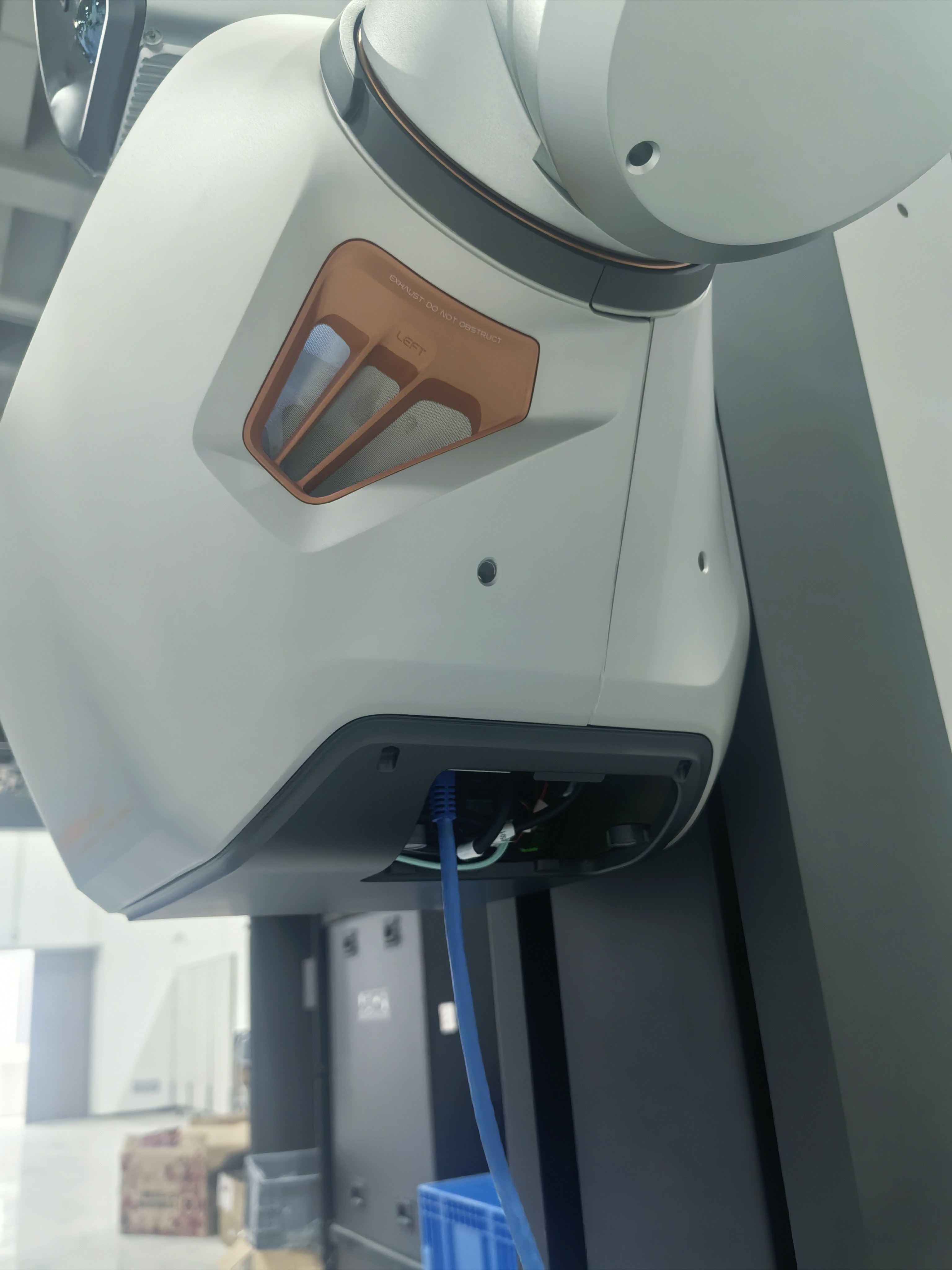
S1's Ethernet port sits inside a cover on the underside of the torso, so you need to open the cover before the port is accessible. Steps:
1.1 Open the cover on the underside of the robot's torso and locate the Ethernet port inside
1.2 Plug one end of the Ethernet cable into the robot's Ethernet port, and the other end into the PC's network port
The overall wiring after connection is shown below:
2. Network Configuration
2.1 Configure PC Network Interface IP
- IP Address:
192.168.100.99(or other address in the same subnet) - Subnet Mask:
255.255.255.0
Settings path: Settings → Network → Wired Settings → IPv4 → Manual
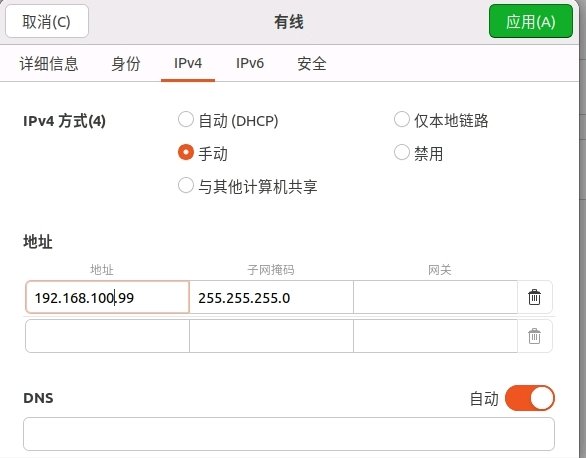
Verify configuration:
ifconfig
Displays inet 192.168.100.99
2.2 One-Click Configuration for PC, XCU, and HPU
PC, XCU, and HPU must be able to ping each other
Run the configure_embosa_ip.sh script in the SDK directory to configure the IP addresses (example: PC: 192.168.100.99, XCU: 192.168.100.66, HPU: 192.168.100.88):
./configure_embosa_ip.sh
The script will interactively prompt for the following:
Enter PC IP: 192.168.100.99          # Required
Enter XCU IP [default 192.168.1.66]:  # Press Enter to use default
Enter HPU IP [default 192.168.1.88]:  # Press Enter to use default
The script will automatically configure the embosa IP for PC, XCU, and HPU, then restart the launcher on each device.
3. Install SDK on PC
Navigate to the SDK directory and execute the installation script
cd GalbotSDK
./install.sh
The installation script automatically configures environment variables on the PC by adding the following to ~/.bashrc:
source /opt/galbot/galbot_sdk/linux-x86_64-gcc940/setup.sh
Re-login or run source ~/.bashrc to activate. If the galbot_sdk library is not found, re-run the installation script or check the configuration in ~/.bashrc.
4. Compile Programs
Compile on PC (x86_64)
cd examples/cpp/
mkdir -p build
cd build
cmake ../ -DCMAKE_TOOLCHAIN_FILE=../cmake/linux-x86_64-gcc940.cmake
make
5. Run Programs
5.1 Run C++ Programs
cd /userdata  # or the directory where your program is located
./your_app
5.2 Run Python Programs
python your_app.py
Some Python examples depend on additional libraries. Before running the Python examples, please execute the following script to ensure all required dependencies are installed:
cd GalbotSDK
./install_python_deps.sh