PC-Side Deployment - WSL2
Use Case: Development and debugging, rapid iteration
Features: Convenient development, supports LAN remote control
1. Physical Connection
The PC connects to the robot through an Ethernet adapter board, which converts a standard RJ45 cable into the robot's dedicated Ethernet port. Use it as follows:
1.1 Plug one end of the Ethernet cable into the RJ45 port on the adapter board, and the other end into the PC's network port
1.2 Insert the adapter board into the matching Ethernet port on the back of the robot

The overall wiring after connection is shown below:

2. Network Configuration
2.1 Configure PC Network Interface IP
- IP Address:
192.168.1.99(or other address in the same subnet) - Subnet Mask:
255.255.255.0
When using WSL2, create a .wslconfig file in the current Windows user profile directory and add networkingMode=Mirrored, for example:


Configure the IP address in Windows:

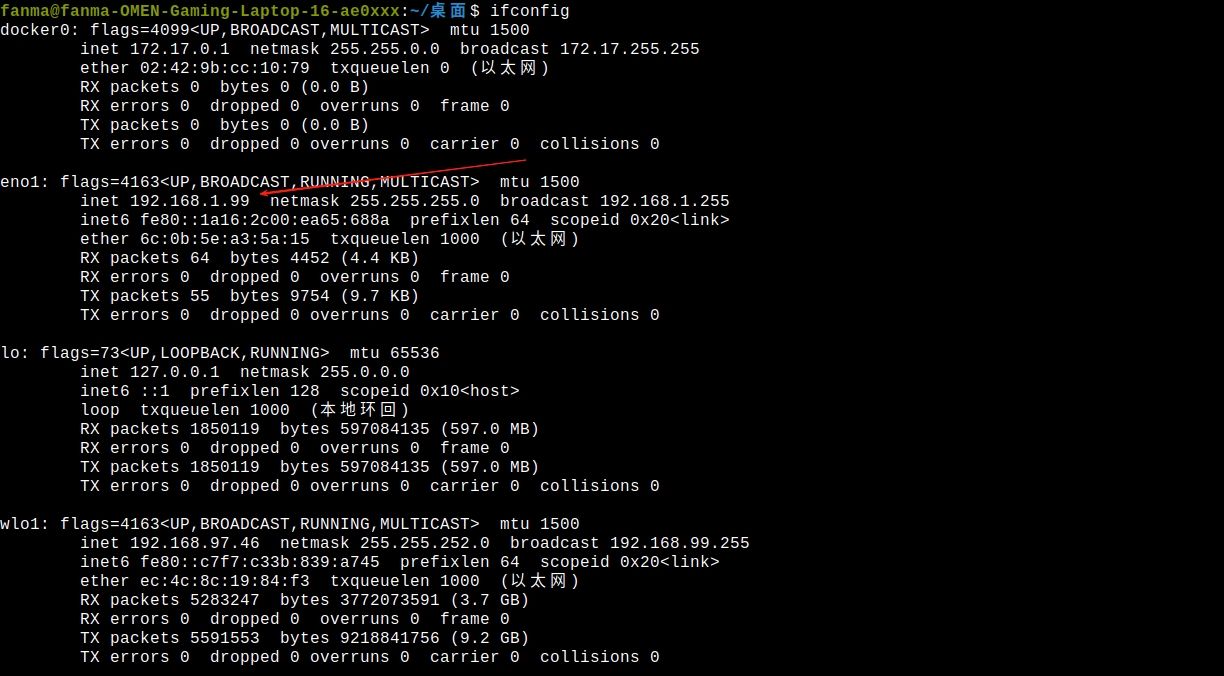
Verify configuration:
ifconfig
Displays inet 192.168.1.99
If SDK interface tests fail, run the following in Administrator PowerShell:
Set-NetFirewallProfile -Profile Domain,Private,Public -Enabled False
It is recommended to restore the firewall immediately after debugging:
Set-NetFirewallProfile -Profile Domain,Private,Public -Enabled True
2.2 One-Click Configuration for PC, XCU, and HPU
PC, XCU, and HPU must be able to ping each other
Run configure_embosa_ip.sh in the SDK directory, select G-series, and configure the PC IP. The XCU IP is fixed at 192.168.1.66, and the HPU IP is fixed at 192.168.1.88:
./configure_embosa_ip.sh
The script will interactively prompt for the following:
Select machine type [1] G-series (default) [2] S1: 1
Enter PC IP [default 192.168.1.99]:
The script will automatically configure the embosa IP for PC, XCU, and HPU, then restart the launcher on each device.
3. Install SDK on PC
Navigate to the SDK directory and execute the installation script
cd GalbotSDK
./install.sh
4. Compile Programs
Compile on PC (x86_64)
cd examples/g1/cpp/
mkdir -p build
cd build
cmake ../ -DCMAKE_TOOLCHAIN_FILE=../cmake/linux-x86_64-gcc940.cmake
make
5. Run Programs
5.1 Configure environment variables
/opt/galbot/ is the default installation path, can be modified according to your installation path
source /opt/galbot/galbot_sdk/linux-x86_64-gcc940/setup.sh
echo 'source /opt/galbot/galbot_sdk/linux-x86_64-gcc940/setup.sh' >> ~/.bashrc
source ~/.bashrc
5.2 Run C++ Programs
cd /userdata  # or the directory where your program is located
./your_app
5.3 Run Python Programs
python your_app.py
Some Python examples depend on additional libraries. Before running the Python examples, please execute the following script to ensure all required dependencies are installed:
cd GalbotSDK
./install_python_deps.sh